business
How to Start a Business in Liverpool: A Practical Step-by-Step Guide
Thinking of starting a business in Liverpool? This guide covers the 12 steps that matter — from testing your idea to getting your first paying customer.
Brian10 min read
Imagine this: you've just spent hours crafting the perfect blog post, sourcing images, and fine-tuning every sentence. You hit 'Update,'...

Imagine this: you’ve just spent hours crafting the perfect blog post, sourcing images, and fine-tuning every sentence. You hit ‘Update,’ and suddenly… a strange error message appears. Or worse, you wake up one morning, navigate to your site, and are greeted by a terrifying blank white screen. It’s every website owner’s nightmare.
For a moment, your heart sinks. All that hard work, gone.
But what if you had an “undo” button for your entire website? A safety net that could instantly restore your site to exactly how it was before disaster struck? That’s precisely what a backup is.
This guide will walk you through everything a WordPress beginner needs to know about backups: what they are, why they are non-negotiable, and how to set up a completely automated system. We’ll show you how to protect your hard work so you can focus on creating amazing content with complete peace of mind. Best of all, it’s a “set it and forget it” solution that takes less than 10 minutes to configure.
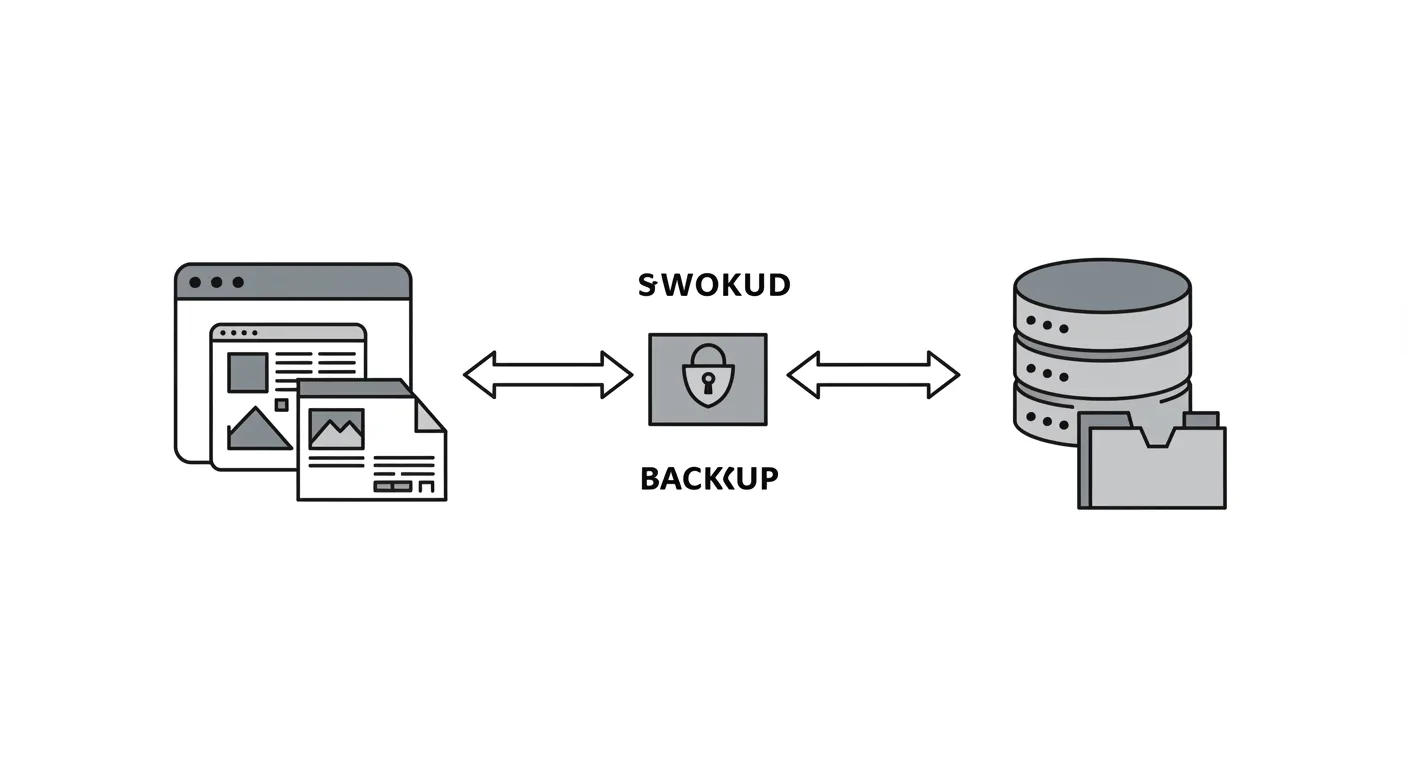
In simple terms, a backup is a complete, independent copy of your website captured at a single point in time. To run a WordPress site, you need two things, and a full backup contains a copy of both:
Think of it like this: your files are the empty photo album, and your database is all of your precious photos and handwritten notes inside it. You need both for a complete memory! Without one, the other is incomplete.
A reliable backup system is the single most important asset for your website. It’s your insurance policy against the common disasters that can strike at any moment:
The ultimate benefit is peace of mind. With an automated backup system in place, you gain the freedom to experiment and grow your site without the constant fear of losing everything you’ve worked so hard to build.
There are a few ways to get a copy of your site, but for beginners, one method stands far above the rest.
At L1WebTips.com, we’ve helped countless clients secure their websites. These are the plugins we trust for their reliability and ease of use.
Let’s get your automated backup system running in under 10 minutes.
Step 1: Install and Activate UpdraftPlus
From your WordPress dashboard, navigate to Plugins > Add New. In the search bar, type “UpdraftPlus.” It will be the first result. Click “Install Now” and then “Activate.”
Step 2: Configure Your Backup Schedule
Once activated, go to Settings > UpdraftPlus Backups. Click on the “Settings” tab.
Here, you’ll set your schedule. We recommend setting the Files backup schedule to Daily and the Database backup schedule to Daily. For “retain this many scheduled backups,” a value of 7 is a good starting point, giving you a week’s worth of backups to choose from.
(Placeholder for Screenshot: The “Settings” tab in UpdraftPlus showing daily schedules).
Step 3: Connect Your Off-Site Storage
This is the most important step. You must store your backups away from your website’s server. Scroll down and choose a remote storage option. We recommend Google Drive as it’s free and easy.
Click on the Google Drive icon, scroll down, and click “Save Changes.” You will then be prompted to follow a link to authenticate your Google account and grant UpdraftPlus permission to save files to a folder in your Drive.
Step 4: Run Your First Manual Backup
Now that everything is configured, let’s make sure it works. Navigate back to the “Backup / Restore” tab and click the big blue “Backup Now” button. A small window will pop up; just click “Backup Now” again.
The plugin will run through the process, and you’ll see a progress bar.
Step 5: Check That Your Backup Is Safe
Once the backup is complete, it will appear in the “Existing backups” list at the bottom of the page. More importantly, log in to your Google Drive account. You will see a new folder named “UpdraftPlus” containing your fresh backup files. Seeing them there gives you 100% confidence that your system is working.
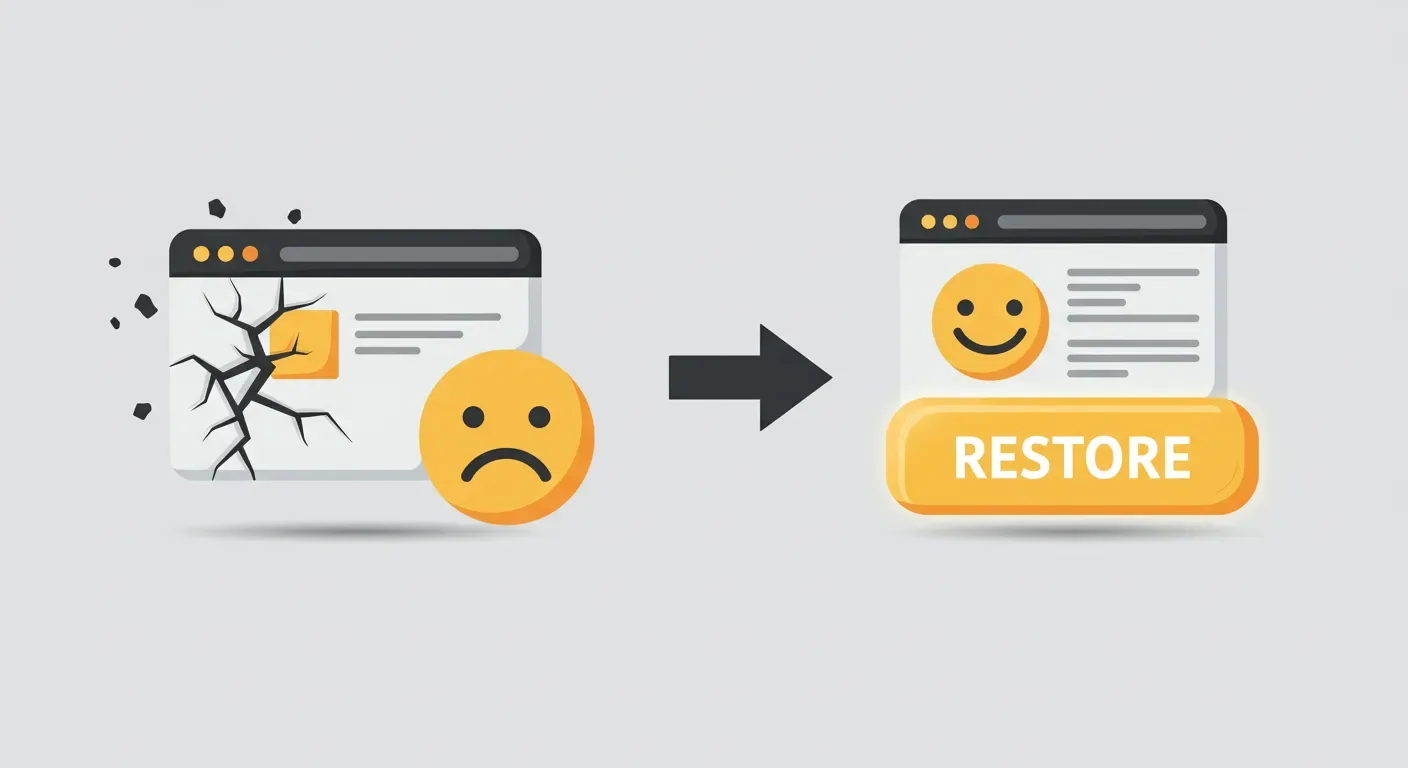
If the worst happens, restoring your site is incredibly simple. Go back to the UpdraftPlus page in your WordPress dashboard. In the “Existing backups” list, find the backup you want to restore from and click the “Restore” button.
The plugin will walk you through choosing which components to restore (usually you’ll tick all the boxes) and handle the rest. In a few minutes, your site will be back to normal.

A reliable, automated backup system is not a luxury; it’s the essential safety net for any serious website owner. By following the steps above, you’ve built a robust system that protects your hard work from accidents, errors, and attacks.
Now, you can stop worrying. With your backup system in place, you have the freedom to manage your site with confidence.
So, if you haven’t already, stop what you’re doing and take 10 minutes to set up your backup system right now. It’s the most valuable thing you’ll do for your website this week. Leave a comment below to let us know you’re protected!
If you’d like a professional hand with your site’s security or any other WordPress needs, our team at L1WebTips.com is here to help.
Get help
We help Liverpool businesses with web design, SEO, and content. Honest work, fixed prices.
More articles
Thinking of starting a business in Liverpool? This guide covers the 12 steps that matter — from testing your idea to getting your first paying customer.
Discover why Astro 6.0 is a game-changer for Liverpool businesses, offering lightning-fast speeds and better security for your local website.
Is your site losing leads? Discover 7 common issues with Liverpool mobile-friendly websites that most business owners miss on their own phones.